How to Rotate Online Video Without Losing Quality | RemotionAI Blog
rotate online video · video rotation · ffmpeg transpose · video orientation · vertical video
Learn how to rotate online video files the right way. Covers pixel vs metadata rotation, common format pitfalls, and quick fixes for stubborn uploads.
Most guides tell you to click rotate, download, and move on. That works right up until the file hits a different app, a different phone, or a platform that ignores the same orientation tag the editor respected. The reliable way to rotate online video is to know whether you changed the preview or changed the pixels.
A sideways clip usually isn't broken, it's just carrying the wrong kind of orientation state for the place you're trying to use it. That difference matters because a quick fix can look right in one browser and fail everywhere else. If you want the file to behave the same across phones, browsers, and social platforms, you need to know which rotation you're doing and why.
Why Your Video Looks Sideways Even After You Rotated It
A creator sends you a phone clip. It looks upright in one editor, sideways in another, and somehow still wrong after a “rotate” button says the job is done. That's the classic trap, the tool changed what you saw on screen, but not necessarily the actual video frames.
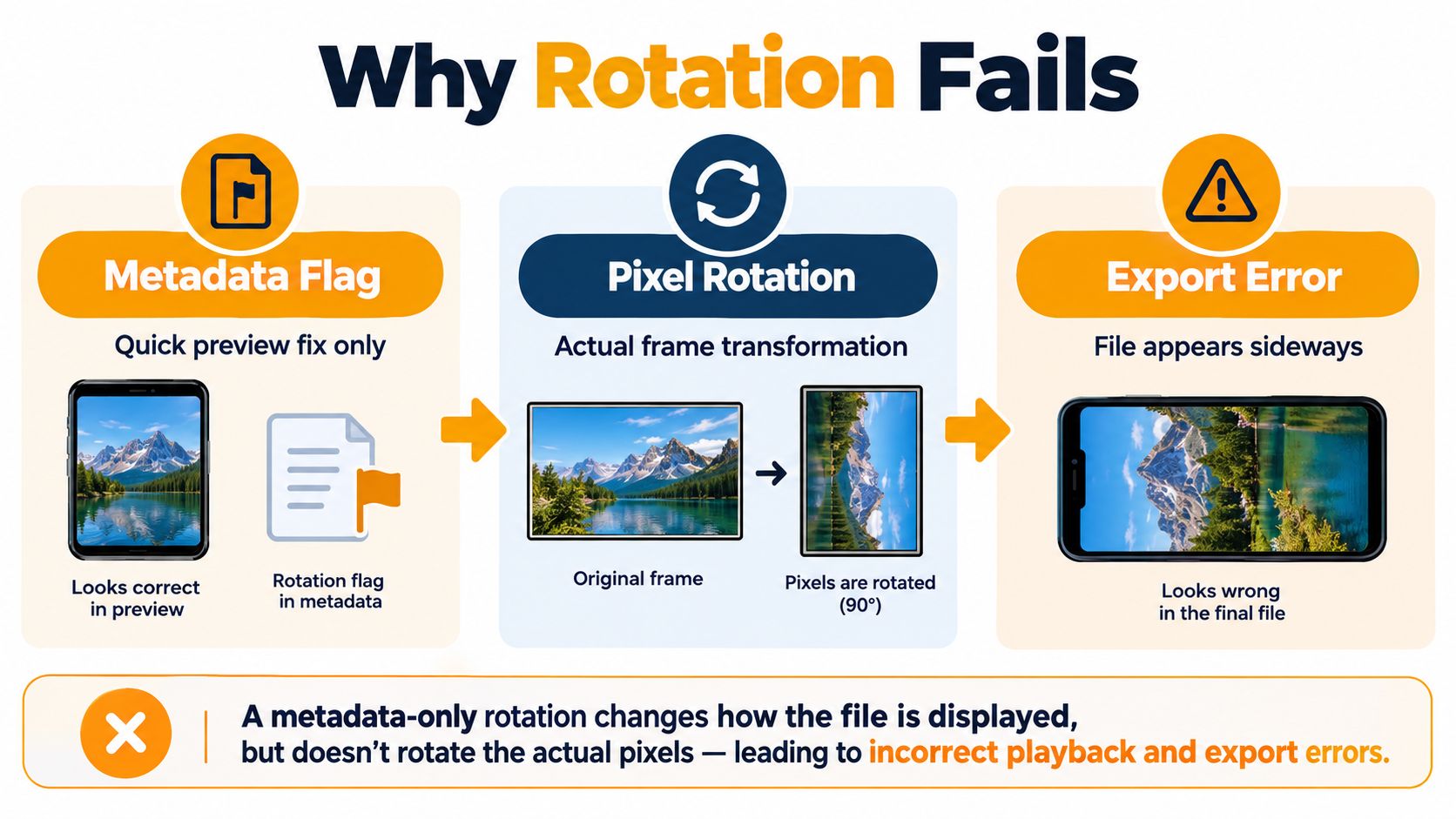
Metadata is not the same as rotation
Video files can carry an orientation hint in metadata, which tells a player how to display the clip. That's why a file can look fine in one environment and appear sideways in another, because not every app honors the same flag. The file didn't always change, only the instruction around it did.
Practical rule: if a clip has to survive emails, browsers, phones, and social uploads, bake the orientation into the pixels, not just the tag.
Browser-based visual rotation and permanent video rotation are different operations. CSS's transform property can rotate an element by modifying the visual coordinate space, meaning an HTML video may appear turned on-screen without its underlying video pixels being re-encoded. FFmpeg's transpose filter, by contrast, performs a frame-level transformation suitable for exporting a new rotated file. That distinction is the line between a preview fix and a portable asset, and it's the same reason a file can look perfect in one tab while MOV compression and file handling tips become relevant when you're cleaning up delivery formats.
What a real fix changes
A true export changes the file's frame data, not just the display layer. That matters when the clip leaves the editor and lands in a place that reinterprets orientation metadata differently. In practice, the more places a video will travel, the less you can rely on a display-only correction.
The simplest test is this, if the tool only rotates the preview, you've got a viewing fix. If it renders a new file with the rotation baked in, you've got an export fix. That's the difference between a quick save and a file that stays upright everywhere.
Rotating a Clip in Your Browser Without Installing Anything
Browser tools are fine when the job is urgent and the clip only needs to look right in one place. Upload the file, choose the rotation direction, preview the result, and check whether the tool is rendering a new file or just changing the on-screen view. If the export panel doesn't expose codec, audio handling, or output dimensions, assume you're looking at a convenience layer, not a full render.

The no-code workflow that actually holds up
Start with the upload, then rotate clockwise or counterclockwise only after you've confirmed whether the file carries orientation metadata. If the editor offers a download that preserves the original container but doesn't mention re-encoding, treat that as a sign the fix may not survive every platform. If it lets you see output dimensions and audio settings, you're in better shape.
A good browser workflow answers three questions before you export:
- Does it render a new file? If the tool only flips the preview, the result can still fail after upload.
- Does it preserve audio? A clean visual fix isn't much help if the sound track goes missing or drifts.
- Does it show output settings? Codec, size, and container tell you more than the rotate button does.
For clips that also need narration or background music, how to add audio to video is a useful reference for keeping the soundtrack part of the workflow instead of an afterthought. That matters when the video is headed to social, where a silent or broken export can ruin the edit faster than a crooked frame.
When the browser is enough, and when it isn't
If the file stays inside one app or one platform, preview rotation can be acceptable. If the clip is leaving your browser and moving through a chain of editors, schedulers, or social networks, re-encode it. That's especially true when you need the same file to behave on desktop and mobile, not just on the page where you fixed it.
If you're editing MP4s specifically, this MP4 editing guide is a practical companion for basic cleanup before export. Use browser rotation for speed, but don't confuse speed with portability.
The Pixel-Rotation Path with FFmpeg
When the file has to survive cross-platform delivery, FFmpeg is the safer path. The core idea is simple, inspect the orientation metadata first, then decide whether you need a metadata-only correction or a real pixel rotation. Metadata-only remuxing is fast, but it depends on the next player reading the flag correctly, so the safer choice is often to bake the rotation into the frame data with transpose.
The direction codes that matter
The transpose filter uses numeric direction codes, and getting the wrong one can leave the clip mirrored or flipped even when the orientation looks fixed. Use 1 for 90 degrees clockwise and 2 for 90 degrees counterclockwise. Codes 0 and 3 combine rotation with a vertical flip, which is useful only when you want that extra transform.
| Code | Effect | When to use |
|---|---|---|
| 1 | 90 degrees clockwise | Phone footage that needs portrait delivery |
| 2 | 90 degrees counterclockwise | Footage that needs the opposite turn |
| 0 | Rotate 90 degrees clockwise and flip vertically | Rare cases where the frame must also be flipped |
| 3 | Rotate 90 degrees counterclockwise and flip vertically | Same, but in the opposite direction |
A basic clockwise export looks like this:
ffmpeg -i input.mp4 -vf "transpose=1" -metadata:s:v rotate=0 output.mp4
The important part isn't just the filter. You also want stale rotation metadata removed, because otherwise you can end up with the classic double-rotation problem, where the file turns once in the pixels and again in the player. For a production-safe workflow, the output has to reflect the new dimensions, and the result should be checked for bitrate, frame rate, and audio sync after render. The safest rule is simple, if the file will pass through multiple systems, re-encoding is the point, not the penalty.
Practical rule: a file that rotates correctly in FFmpeg but not in playback still has a metadata problem somewhere.
File-Format Pitfalls That Break Your Rotation
The same rotation command doesn't behave the same way everywhere. MP4 and MOV are generally safer containers for orientation metadata, while WebM and AVI are less forgiving, which makes a re-encoded export the smarter bet when compatibility matters more than convenience. The file may look fine in your editor and still land wrong in a destination that treats rotation tags differently.
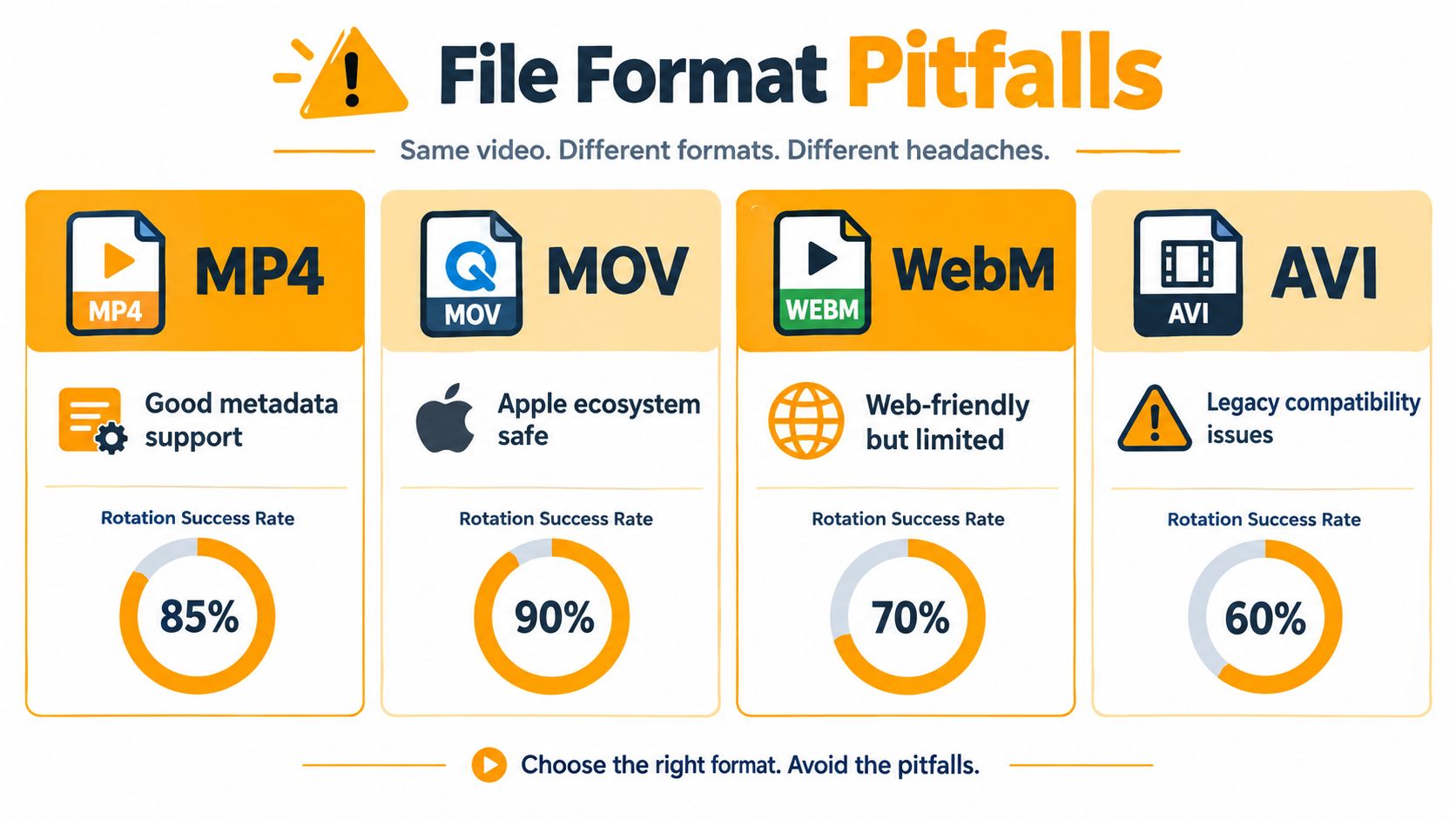
Containers behave differently
Phone footage often arrives with an orientation flag already attached. If you rotate that file again without checking first, you can stack transformations and produce a clip that looks corrected in one place but is wrong in another. That's why the safest habit is to inspect before you edit, not after the upload fails.
MP4 and MOV are the containers to reach for when quality and compatibility both matter. WebM can be fine for the web, but orientation support is less predictable, and AVI is a weaker choice for modern rotation workflows. If you're rescuing user-generated content or founder clips, the export container is part of the fix, not a packaging detail.
Export choice should match the delivery path
If the video is going to TikTok, Instagram, or YouTube Shorts, don't treat rotation as the final step, because aspect ratio will decide whether the frame survives cleanly. If the file is meant to stay in a desktop workflow, a metadata-only correction may be acceptable for internal review. For anything public-facing, the safest route is the one that turns the clip into a new, upright file.
Choosing 9 - 16, 16 - 9, or 1 - 1 for the Destination
Vertical video moved from a niche format to a central mode of online viewing during the smartphone era. Mary Meeker's 2015 Internet Trends Report measured vertical video's share of viewing at 5% in 2010 and 29% in 2015 (Vertical video background). By 2018, the rule was already clear, distribution context and device orientation shape how video gets created, viewed, and optimized. That's why rotation is often really a framing decision.
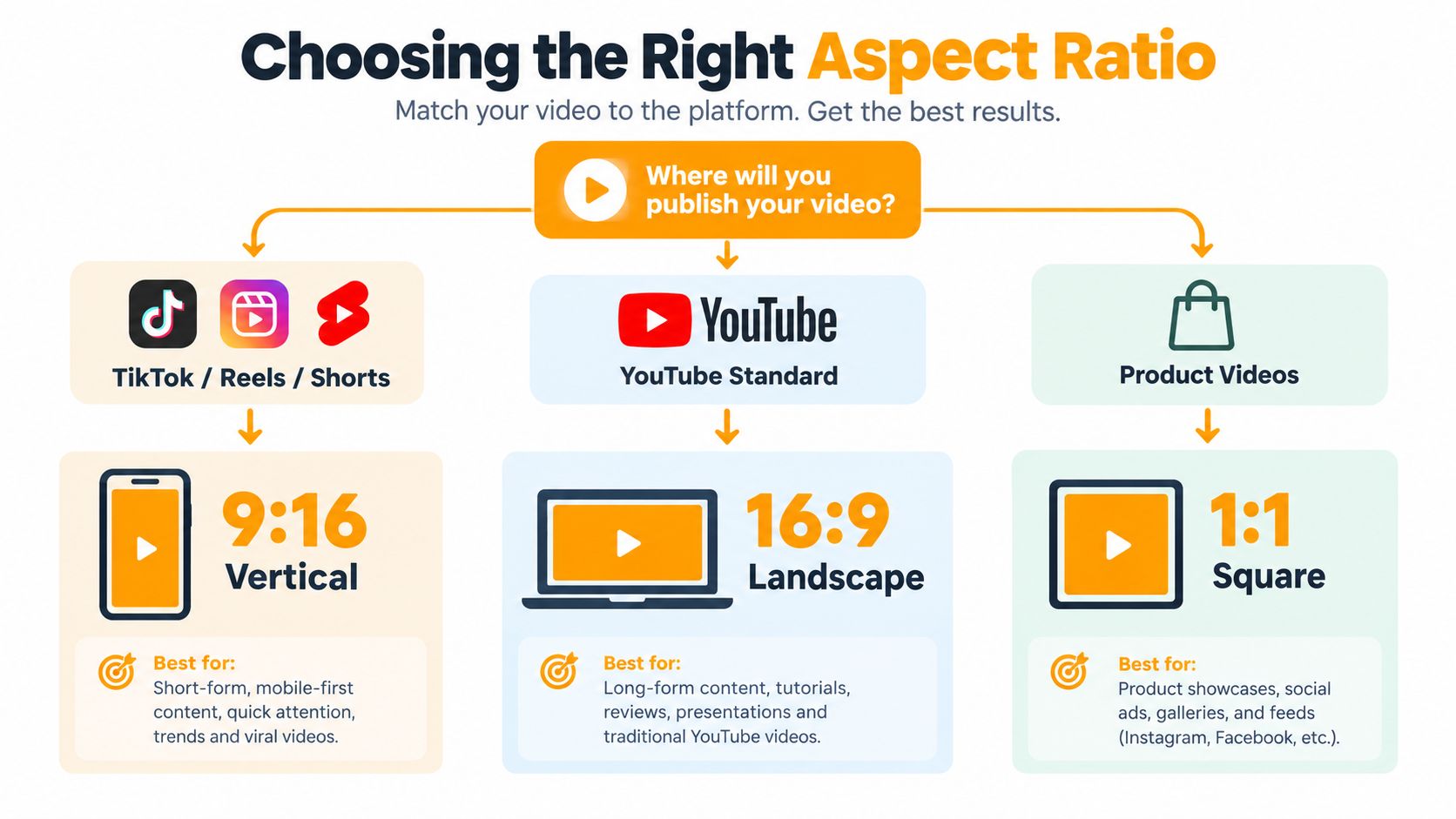
Match the frame to the platform
9:16 vertical fits TikTok, Reels, and Shorts because those feeds are built for handheld viewing. 16:9 wide fits standard YouTube and other large-screen placements. 1:1 square still works well for product pages and some feed placements where a balanced frame feels cleaner than a tall one.
If you need a broader framing guide, resize video without cutting the frame is a useful companion piece. That kind of workflow matters when the clip needs to keep the subject intact while the canvas changes around it.
Crop, pad, or reflow
A rotated clip forced into a portrait frame often produces black bars or an awkward crop. If the subject is centered and forgiving, padding can work. If the subject sits near the edge, reflow the composition instead, because a clean crop beats a compromised one.
Use this rule set:
- Crop when the subject stays strong after trimming the edges.
- Pad when you need to preserve the whole frame and can accept bars.
- Reflow when the composition needs to be rebuilt for the new aspect ratio.
Rotation alone doesn't solve bad framing. The file has to look intentional in the destination, not just upright in the export window.
A Quick Decision Rule Before You Export
If the file is going to one known platform, metadata rotation may be enough. If it's moving through multiple apps or social destinations, bake the turn into the pixels and render a fresh file. If the destination uses a different aspect ratio, treat the job as a reframe, not a rotate.
Before you export, ask one question, will this file still look right after it leaves the tool that fixed it?
For export discipline and handoff checks, this video export guide is worth keeping nearby. A simple workflow checklist beats a rescue mission every time.
Troubleshooting the Rotation That Refuses to Stick
The failures that waste the most time are the boring ones. A file rotates twice because the metadata and the pixel transform stack together. A player ignores the flag completely. Audio drifts after the re-encode, and the clip that looked fine in the editor arrives sideways in the destination.
Recover the file in the right order
Check the display matrix or orientation metadata first. If the file is already carrying a rotation flag, strip it before you apply a pixel rotation. Then re-render with explicit width and height, because rotating a 90-degree frame swaps the frame's width and height, and mixed vertical or horizontal batches need special handling.
The transpose filter also supports conditional behavior, including portrait-sensitive processing, so you don't have to blindly rotate every clip in a batch. That's useful when you're cleaning up a folder full of mixed phone footage and only some of it needs the turn. It keeps you from creating a new problem while fixing the old one.
Verify on more than one player
A file that looks correct in one browser can still fail in a mobile share sheet or a different desktop app. Test the export in at least one desktop browser and one phone preview before you hand it off. If the clip survives both, you've probably fixed the underlying problem instead of just the preview.
When the export still misbehaves, don't keep rotating it. Re-check the metadata, confirm the container, and render again with the orientation baked into the frames. That's the path that sticks.
If sideways clips keep landing in your workflow, RemotionAI can turn plain-language ideas into platform-ready videos, including vertical and horizontal versions that are built for TikTok, Reels, and YouTube. If you want a faster way to produce clean, export-ready video without wrestling every rotate setting by hand, visit RemotionAI.