Split by Scene | RemotionAI Blog
split by scene · video editing · scene detection · remotion · video automation
Master scene detection and learn to split by scene for TikTok, Reels, and YouTube. Compare automated AI tools with manual control for perfect results.
You've got a folder full of raw footage, a deadline approaching, and no desire to scrub through every minute looking for usable moments. An automatic split by scene tool sounds like the obvious answer, until the export comes back chopped into awkward fragments, with fades treated as noise and smooth transitions cut in half. The challenge isn't detecting that frames changed. It's understanding where one piece of action ends, where the next begins, and how those scenes should flow in the finished video.
The Problem With Endless Raw Footage
A screen recording can contain a long stretch of setup, repeated clicks, pauses, and several useful demonstrations buried inside it. A camera shoot creates a similar problem from another angle. You may have multiple takes, camera positions, room changes, and short moments that only become valuable once they're placed beside the right neighboring shot.
Traditional editing makes you pay for every minute of that material. You scrub, stop, mark an in point, mark an out point, and repeat the process until the timeline becomes a second job. By the time you find the strongest moments, your attention has shifted from storytelling to file management.
That's why automatic scene splitting is useful even when it isn't perfect. It creates an initial map of the footage, giving you separate candidates to review instead of one unbroken recording. Tools such as an automatic clip maker by Taja AI can also help creators turn longer material into shorter, reviewable pieces when the first priority is finding content worth keeping.
Why the first pass still needs judgment
A scene boundary isn't always a visible jump. A hard cut is easy for software to notice because neighboring frames change abruptly. A fade, dissolve, wipe, camera movement, or gradual lighting change is different. A detector may identify part of the transition as a new shot, miss it completely, or create several unnecessary segments.
The editing history explains why this problem exists. Film editing with continuity across multiple shots is generally traced to 1898, when Robert W. Paul's Come Along, Do! is cited as one of the first films to use more than one shot. By 1900, editing was still described as “barely imagined” in the historical account from Cinema Montage's overview of editing. Splitting narrative action into meaningful scenes developed gradually, so it's unrealistic to expect a one-click detector to understand every storytelling decision.
Practical rule: Use automatic splitting to reduce searching, not to replace editorial review.
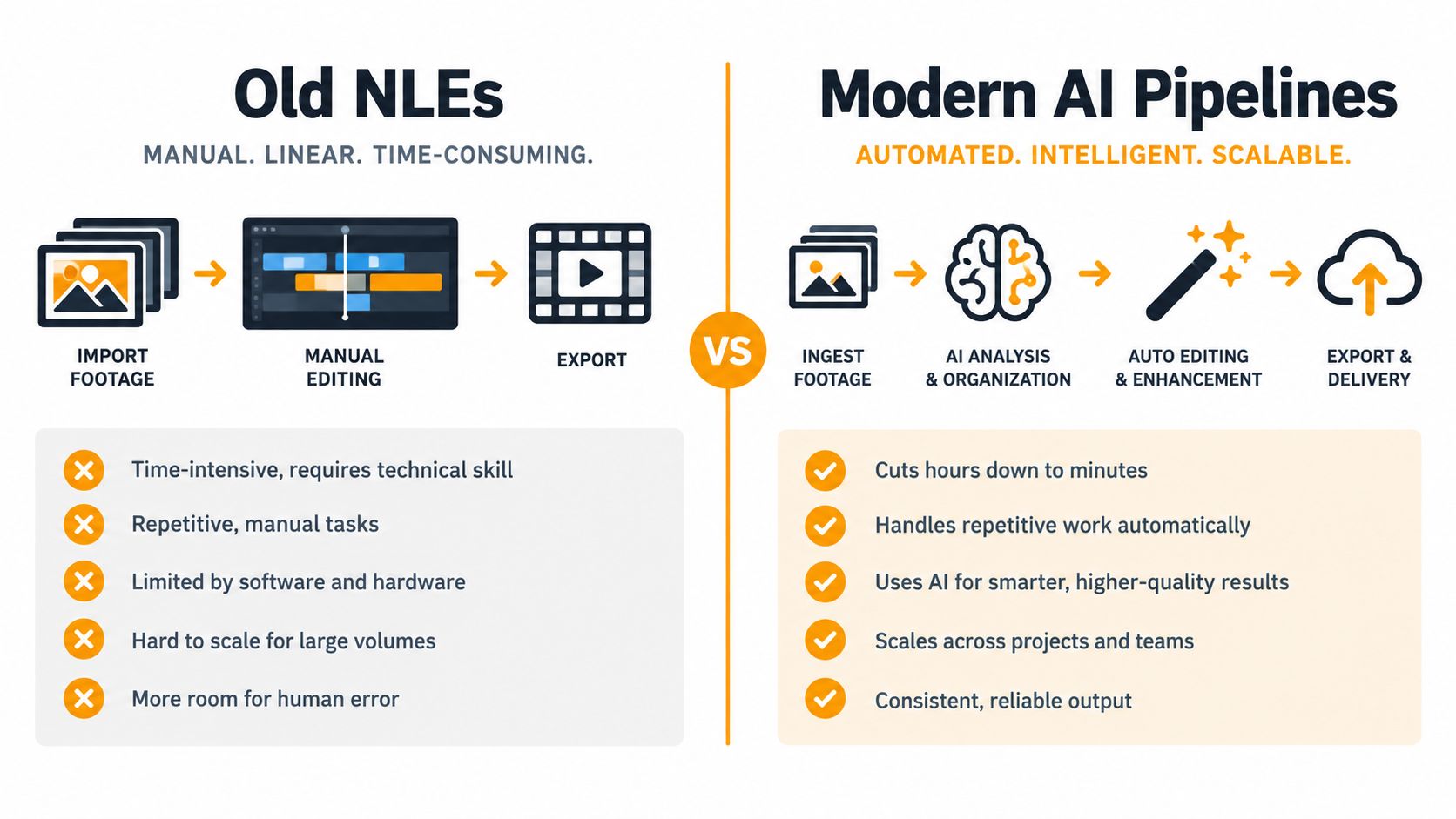
Old NLEs Versus Modern AI Pipelines
Desktop editors still have a valid place in this workflow. Corel VideoStudio documents Split by Scene as a feature that can automatically detect scenes in DV AVI or MPEG files, let users choose a scan method, adjust sensitivity, and list detected scenes for splitting or joining. That's a practical approach for organizing compatible footage quickly, and it remains useful when you already work inside a conventional NLE. (Corel's Split by Scene documentation)
The limitation is that many older workflows stop at boundary detection. FFmpeg-based pipelines commonly use a scene threshold, where lower values detect more cuts and higher values detect fewer, as explained in this FFmpeg scene detection guide. That gives you control, but it also gives you another setting to tune, and a threshold that catches a subtle transition can overreact to ordinary movement elsewhere in the footage.
The hard-cut trap
PySceneDetect offers different modes for different visual behavior. detect-content compares frame-to-frame content changes for fast cuts, detect-threshold looks for fades in and out by comparing average frame intensity to black level, and detect-adaptive compares a frame's score with its neighbors. The distinction matters because a method designed for sharp changes won't automatically handle a gradual transition well. (PySceneDetect's command-line documentation)
Modern browser-based pipelines change the handoff after detection. Instead of only exporting chopped files, RemotionAI can turn a described scene structure and supplied assets into executable Remotion React code. That code-backed approach lets you adjust scene order, timing, layout, and transitions without rebuilding the edit manually each time.
The RemotionAI Workflow for Scene Detection
Start by defining what each scene should accomplish. For a product video, that might be an opening problem, a product demonstration, a proof point, and a closing action. For a talking-head recording, it could be the introduction, each topic, and the final summary. Upload the raw assets or describe the intended structure, then let the system create a Remotion composition for the identified scenes.
The important distinction is that each scene becomes an editable part of a composition, not merely a detached media file. You can preview the result in the browser and evaluate pacing before committing to a final render. If one segment feels too long, shorten its duration. If a transition begins too early, adjust the timing in the generated code instead of dragging clips around until the timeline behaves.
A practical review loop
Check the boundaries first. Confirm that dialogue, gestures, and demonstrations aren't split in the middle of a meaningful action.
Review neighboring scenes together. A segment can look correct on its own but feel abrupt beside the next one. Browser preview makes that relationship easier to judge.
Refine the structure before styling. Fix order and duration first. Then adjust captions, framing, colors, and other visual details.
Keep the source editable. The value of a generated composition is that later changes remain possible. The Remotion Claude tutorial provides useful context for working with code-generated Remotion projects.
The workflow follows a sound technical principle. Shot boundary detection should come before scene grouping, because meaningful scenes often contain multiple shots. A CVPR scene segmentation benchmark reported average precision improving from 28.1 to 47.1, with recall reaching 73.6 and Recall@3s reaching 79.8, when local sequence and global context were added. Those figures show why visual difference alone isn't enough. Context-aware grouping is closer to the editor's real task.
Refining Transitions and Platform Audio
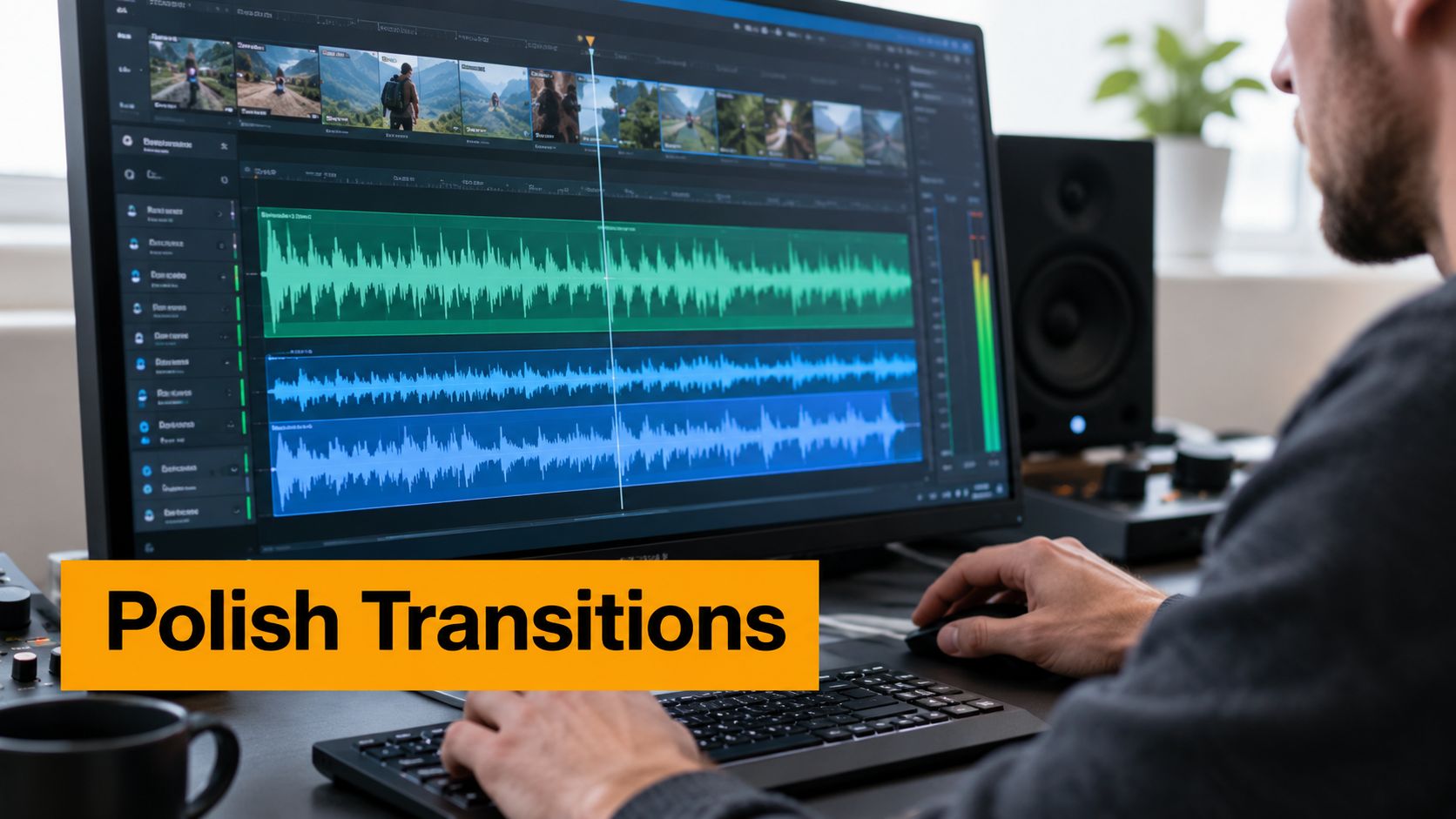
Once the scene boundaries are usable, refinement becomes the part that makes the video feel intentional. A hard cut can work when the action changes sharply, but it can also make a vertical edit feel like a stack of unrelated clips. A short crossfade, a carefully timed overlap, or a code-generated transition can preserve continuity without hiding the scene change.
RemotionAI's composition-based workflow lets you adjust scene duration and synchronize voiceover or background music with the edit. Start by identifying the important audio moment, such as the first word of a new sentence or a beat that should trigger a visual change. Then move the scene boundary to support that moment, rather than forcing the audio to fit an arbitrary cut.
Keep the transition subordinate
A transition should clarify movement between scenes, not become the main event. Use a clean cut for conversational continuity, a dissolve for a softer change in time or mood, and a more visible motion treatment only when it supports the format. The crossfade guide from Remotion is a useful reference when you need to decide whether overlapping scenes will improve the handoff.
For editors who want to study more elaborate effects, the After Effects transitions masterclass offers broader visual treatment ideas. The same restraint applies to audio. Keep speech clear, avoid letting music compete with the key line, and preview the edit on the device and platform where viewers will encounter it.
Rendering Your Final Production-Ready Video
A scene-splitting workflow only pays off when the final export preserves the decisions you made during review. Before rendering, watch the complete sequence once without stopping. Look for clipped words, abrupt audio changes, a transition that lands after the action has already changed, and captions that outlive the scene they describe.
The code-backed approach gives you a repeatable production asset. You can keep the composition, change the source footage, revise the copy, or adapt the same structure for a different aspect ratio. RemotionAI supports browser previews, generated Remotion code, synchronized audio elements, and final MP4 rendering, while source .tsx files can be retained for deeper customization. Those capabilities make the workflow more reusable than a one-off timeline assembled entirely by hand.
A final export checklist
- Scene logic: Every segment has a clear editorial purpose.
- Transition timing: Fades and overlaps begin and end with the action.
- Audio balance: Voice, music, and effects support one another.
- Platform framing: The composition fits the intended vertical or horizontal format.
- Source control: Keep the editable project and source code alongside the rendered MP4.
For related production work, a buyer's guide to video transcription software from AIDictation can help you evaluate transcription tools for dialogue-led edits. When the project is ready, follow the Remotion video rendering guide to move from preview to delivery.
Automatic detection still has blind spots. It can identify visual change without understanding narrative continuity, and it can treat a fade as a problem instead of a deliberate editorial choice. A workflow that generates proper transition code gives you a better place to correct those errors, because you're refining scenes as structured compositions rather than repairing a pile of disconnected clips.
RemotionAI turns plain-language video ideas and raw assets into editable Remotion compositions with browser previews, AI voiceovers, synchronized music, captions, and production-ready MP4 rendering. If your current split by scene workflow produces choppy cuts, visit RemotionAI to build a scene-aware edit you can preview, refine, and reuse.