Vertical Video Dimensions: The 2026 Reference Guide | RemotionAI Blog
vertical video dimensions · vertical video size · 9:16 aspect ratio · social video specs · video export settings
Master vertical video dimensions with our 2026 reference guide. Get definitive specs, platform cheat-sheets, and export settings for TikTok, Reels, and Shorts.
It's 11 p.m., the deadline is close, and your render looks perfect in the editor. The timeline is vertical, the subject is centered, and the export says 1080 × 1920. Then you preview it in Instagram Reels and discover that the caption is clipped, the username sits across the speaker's face, and the product callout disappears behind the interface.
That's the frustrating reality of vertical video dimensions. The canvas can be technically correct and still fail in delivery. Aspect ratio, resolution, safe zones, codec, bitrate, and platform placement all affect whether the finished clip looks native or needs another round of edits.
Why Getting Vertical Video Dimensions Right Matters
Vertical dimensions set the boundaries for every creative decision, including camera framing, captions, logos, and product overlays. For TikTok, Instagram Reels, and YouTube Shorts, the usual starting point is 9:16 at 1080 × 1920 pixels, a format covered in PostJay's 2026 dimensions guide.
A correctly sized canvas can still produce a weak upload. The platform may place captions, usernames, action buttons, and other controls over the frame. Feed previews and profile grids can also crop the composition, so a subject or headline that looks fine in the master may lose context after publishing.
The cost of a correct-looking export
Build the sequence in the target format before adding graphics. A 9:16 timeline prevents black bars and limits major reframing, but it does not reserve space for interface overlays. Keep faces, subtitles, logos, and calls to action inside a practical safe area, then check the exported file in each intended placement.
A producer should verify more than width and height:
- Canvas: Does the project use the intended pixel dimensions?
- Placement: Will the video run full-screen, in a feed, or inside a profile grid?
- Composition: Do the subject and key messages remain clear beneath platform controls?
- Delivery: Can the platform process the codec, file type, and bitrate reliably?
The trade-off is simple. Tighter framing can make a clip feel immediate, while extra breathing room protects important details during cropping and UI changes. A stable master gives captions, b-roll, logos, and calls to action a consistent frame, reducing repairs after every upload. The next checks should cover safe zones and each platform's interface, not just the export preset.
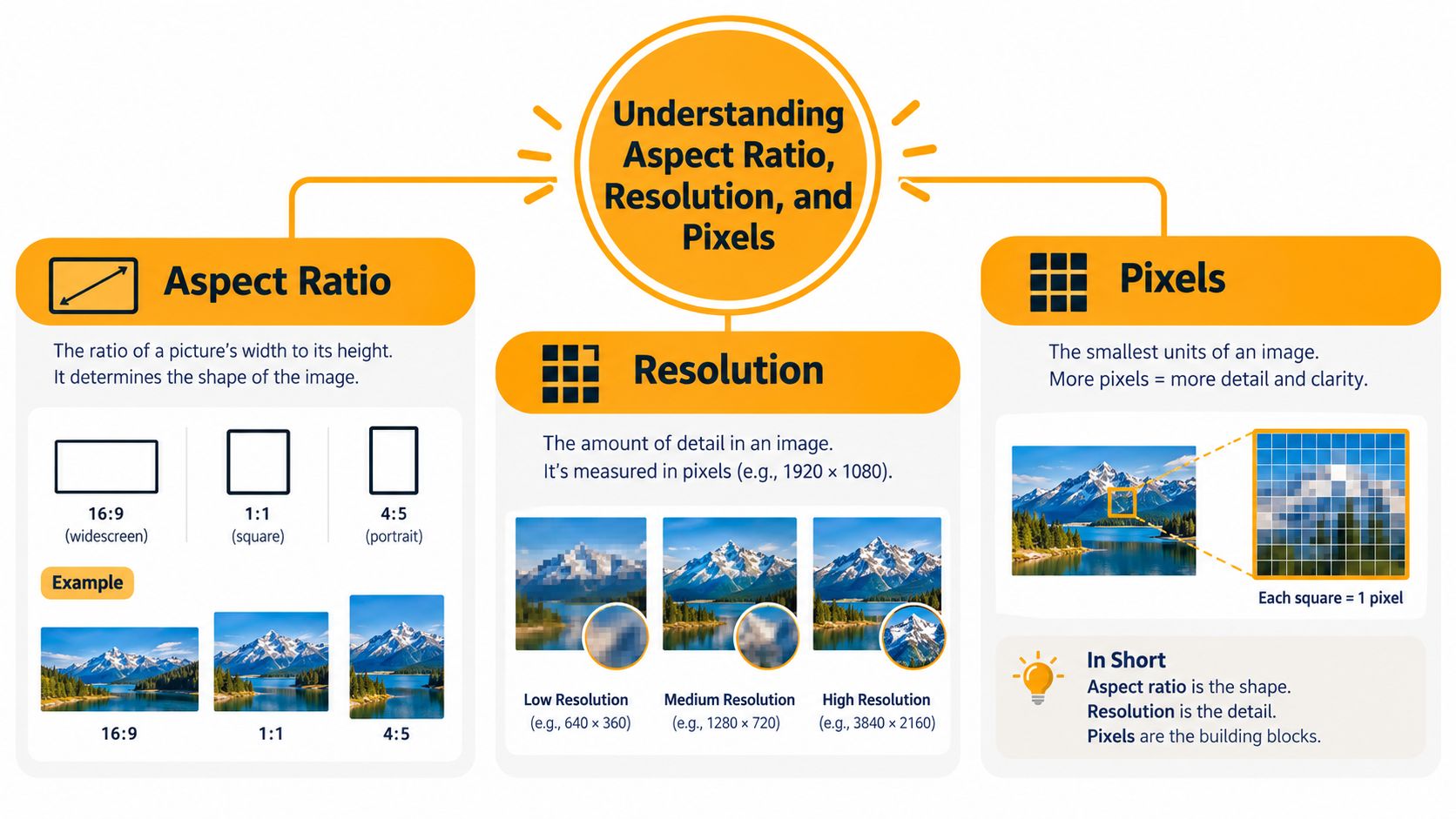
Understanding Aspect Ratio, Resolution, and Pixels
These terms describe different parts of the same file.
Aspect ratio is the shape of the frame, expressed as width relative to height. A 9:16 composition is nine units wide for every sixteen units tall. Resolution describes the actual pixel dimensions, written as width × height. A 9:16 file might be 1080 × 1920, while another file can keep the same shape at a smaller size.
Pixels are the individual points that form the image. More pixels can preserve finer detail when the aspect ratio stays consistent, but resolution and aspect ratio still need to be chosen separately. A file can have the right shape at the wrong size, or the right size in the wrong shape.
A practical example
A vertical master at 1080 × 1920 pixels contains 2,073,600 total pixels. It keeps the 9:16 shape while providing a Full HD portrait canvas suitable for full-screen mobile playback. The important distinction is simple:
- Choose the shape first, such as 9:16.
- Set the actual canvas, such as 1080 × 1920.
- Compose the subject and overlays inside that canvas.
- Export without changing the frame dimensions during encoding.
If you need to adapt an existing clip rather than rebuild the sequence, this guide to changing aspect ratio for Reels is a useful companion for reframing decisions.
The Vertical Format Family at a Glance
Vertical video is a format family, not one universal rectangle. Choose the canvas based on whether viewers watch in a full-screen player, a feed, or a profile preview.
9:16 at 1080 × 1920 remains the practical master for TikTok, Reels, Stories, Shorts, and other full-screen mobile placements. 4:5 at 1080 × 1350 works better in feed placements, where the taller frame occupies more scrolling space without forcing full-screen playback. 1:1 at 1080 × 1080 still fits square feeds and carousel video.
3:4 fills the gap between those formats. A 3:4 at 1080 × 1440 canvas provides more width than 4:5 while retaining a vertical presentation. Some workflows render the same shape at 720 × 960, as documented in SleekPost's vertical dimensions guide. That extra width can help product demonstrations, talking-head framing, and feed previews, but it will not fill a 9:16 player without cropping or added space.
| Aspect Ratio | Pixel Dimensions | Best For |
|---|---|---|
| 9:16 | 1080 × 1920 | TikTok, Reels, Stories, Shorts, full-screen mobile video |
| 4:5 | 1080 × 1350 | Instagram and Facebook feed placements |
| 1:1 | 1080 × 1080 | Square feeds, carousel video, broad compatibility |
| 3:4 | 720 × 960 or 1080 × 1440 | Pinterest-style layouts and selected vertical feed previews |
Use 9:16 when one master must cover full-screen playback. Build 4:5 or 3:4 versions when the campaign prioritizes feed visibility, product framing, or a platform preview that would crop the taller canvas. Guidance on sizing social media posts correctly helps map those versions to specific placements.
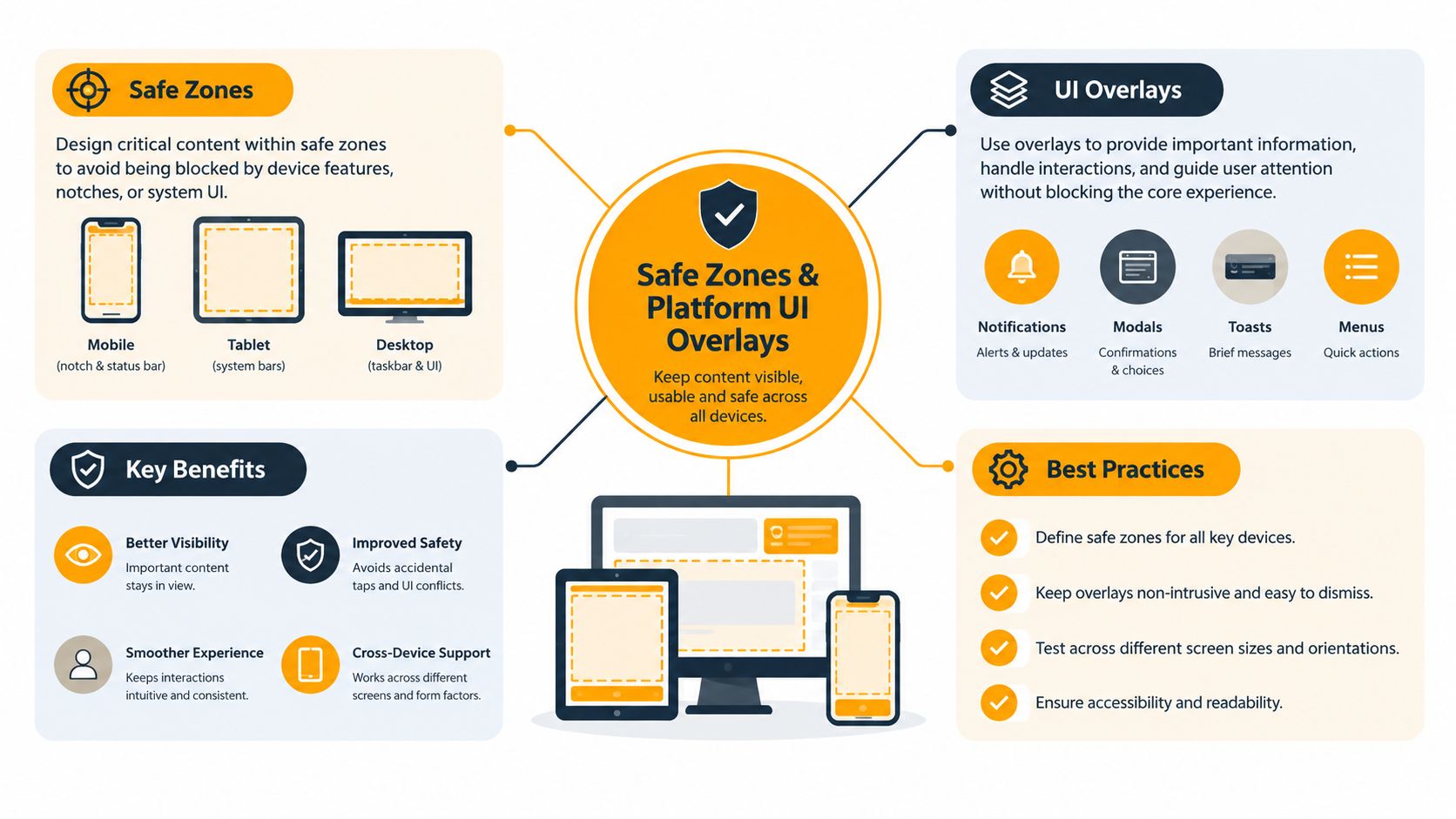
Safe Zones and Platform UI Overlays
A compliant canvas can still produce a poor creative if important elements sit underneath interface chrome. TikTok, Reels, and Shorts place controls around the frame, and those controls can change depending on whether the video appears in full-screen playback, a feed preview, or a profile grid.
A workable starting template reserves the top 15% to 20% for profile information and platform controls. The bottom 25% to 30% is particularly risky on TikTok and Reels because captions, descriptions, audio information, and engagement controls compete for that space. Reels and TikTok also place an action stack along the right edge, occupying roughly 8% to 10% of the frame width.
Build a protected composition
For cross-platform work, keep essential text, logos, faces, and calls to action inside a centered core of about 60% of the frame width and 70% of its height. This isn't a substitute for checking the live preview, but it creates a reliable first pass.
Platform differences still matter:
- TikTok: Keep headlines away from the upper band and keep subtitles clear of the lower caption area. The right rail can cover product details or on-screen buttons.
- Instagram Reels: Protect the lower area from captions and the right side from the like, comment, share, and remix stack. Profile-grid previews can also crop the composition differently.
- YouTube Shorts: Reserve space near the top for the title and interface. Mobile previews may also need extra care around the iOS Dynamic Island notch safe area.
Practical rule: If the message matters, place it where the platform can't hide it, then verify it in the actual upload preview.
Use a platform-specific overlay guide when creating templates. The Instagram video aspect ratio guide is useful for checking how the same portrait asset behaves across placements.
Platform Cheat-Sheet for TikTok, Reels, and Shorts
The safest shared master for the three major short-form destinations is 1080 × 1920, 9:16, MP4. Platform settings diverge after that, especially around codec options, upload limits, duration, and recommended bitrate.
| Platform | Resolution | Aspect Ratio | Codec | Bitrate | Frame Rate | Max File Size | Max Duration |
|---|---|---|---|---|---|---|---|
| TikTok | 1080 × 1920 | 9:16 | H.264 | Around 5 to 10 Mbps | 30fps baseline, 60fps supported | 287.6MB | 10 minutes |
| Reels | 1080 × 1920 | 9:16 preferred | H.264 | 6 to 10 Mbps | 30fps | 4GB | 3 minutes |
| Shorts | 1080 × 1920 | 9:16 | H.264 or H.265 | 8 to 12 Mbps | 30 to 60fps | Not specified in the verified data | 60 seconds |
TikTok's 540 × 960 minimum for some vertical ads shows why 1080 × 1920 should be treated as the practical default, not the absolute floor (ClickAnalytic's TikTok aspect-ratio guide). Instagram guidance also recommends 1080 × 1920 for Reels and Stories, rather than using feed-oriented 4:5 or 1:1 dimensions (Omnifit's Instagram dimensions guide).
All three workflows should use an MP4 container. For audio, use AAC-LC at 48kHz stereo, with a loudness target of -14 LUFS. Reels can also support 1080 × 1350 at 4:5 for feed delivery, while Shorts can scale 1080 × 1080 cleanly when a square asset is required.
Creators building repeatable workflows can use this guide to create viral YouTube Shorts clips, then validate the final export against the destination rather than relying on an editor preview. TikTok's specific ratio considerations are also covered in this TikTok video ratio guide.
File Formats, Codecs, and Bitrate Recommendations
For direct social uploads, MP4 with H.264 video remains the safest production choice. It encodes quickly, plays across a broad range of devices, and is less likely to create an ingest problem than a large editing master.
H.265, also called HEVC, can preserve comparable quality at roughly 40% smaller file size, which helps when an upload approaches a platform limit. The trade-off is compatibility, especially on older Android hardware and in inconsistent platform processing pipelines. AV1 is emerging in YouTube workflows, but it remains an uncertain choice for TikTok and Reels delivery in 2026.
Choose frame rate by motion
Use 30fps for talking heads, interviews, tutorials, and most lifestyle clips. Choose 60fps for sports, dance, gaming, or fast camera movement when smoother motion is worth the larger file.
| Resolution | Codec | Container | Recommended Bitrate | Frame Rate | Use Case |
|---|---|---|---|---|---|
| 1080 × 1920 | H.264 | MP4 | 8 to 10 Mbps | 30fps | Standard social delivery |
| 1080 × 1920 | H.264 | MP4 | 10 to 15 Mbps | 60fps | Motion-heavy clips |
| 1080 × 1920 | H.265 | MP4 | Lower than H.264 equivalent | 30fps | Smaller uploads where supported |
| 720 × 1280 | H.264 | MP4 | 5 to 7 Mbps | 30fps | Lighter delivery and previews |
Audio should be AAC-LC, 48kHz, stereo, 192 to 256 kbps. Keep the master in a high-quality editing format if you need it for future work, but transcode the upload copy to MP4 before publishing.
Export Settings for RemotionAI and Similar Tools
Set the composition before adding graphics. Use 1080 × 1920, 30fps, and an aspectRatio of "9:16" for TikTok, Reels, and Shorts. Choose 60fps only when the source footage and motion design require smoother playback. Matching the preview to the delivery frame prevents captions, faces, and product overlays from shifting during export.
| Property | TikTok | Reels | Shorts |
|---|---|---|---|
| Width | 1080 | 1080 | 1080 |
| Height | 1920 | 1920 | 1920 |
| Frame rate | 30fps | 30fps | 30fps |
| Aspect ratio | "9:16" |
"9:16" |
"9:16" |
| Video bitrate | 8 Mbps | 8 Mbps | 8 Mbps |
| Audio bitrate | 192 kbps AAC | 192 kbps AAC | 192 kbps AAC |
| Codec | H.264 | H.264 | H.264 or H.265 |
| Pixel format | yuv420p |
yuv420p |
yuv420p |
| Container | MP4 | MP4 | MP4 |
Keep captions and key graphics inside the platform's safe area, even when the composition dimensions are correct. The preview can look clean while interface controls cover text after upload, so check the exported file on a phone before publishing.
Save separate presets for each platform, even when their current values match. Future changes to duration, codec, or bitrate then stay isolated. In After Effects, FFmpeg, or Remotion, use portrait dimensions, the chosen frame rate, H.264 or H.265, yuv420p, AAC audio, and an MP4 container. For implementation details, follow this guide to rendering a video.
RemotionAI can generate platform-ready videos from plain-language prompts, produce editable Remotion React code, add voiceovers and synchronized captions, and render MP4 output. Verify the final render rather than relying only on the composition preview.
When to Use 3:4 or 4:5 Instead of 9:16
Full-screen playback is not always the placement goal. For Instagram or Facebook feed posts, 4:5 at 1080 × 1350 occupies more feed space than a square asset without requiring viewers to open a full-screen player.
Choose 4:5 when viewers primarily scroll a feed, the clip appears in a carousel or article, or the subject needs a wider frame. Product demonstrations often benefit from the added width, which can keep the product, a hand, and supporting text visible without an aggressive crop.
3:4 provides more height than 4:5 while staying wider than 9:16. It suits Pinterest-style product showcases and selected feed previews where extra headroom gives overlay text more room. Practical 3:4 output sizes include 720 × 960 and 1080 × 1440, as outlined in this vertical video dimensions guide.
Keep 4:5 separate from full-screen Reels, TikTok's For You feed, and Shorts. Those placements are designed for 9:16 playback. Maintain a 9:16 master, then create a dedicated feed crop when the placement requires it. Check faces, product edges, and text in the cropped composition before rendering.
Common Export Mistakes and How to Fix Them
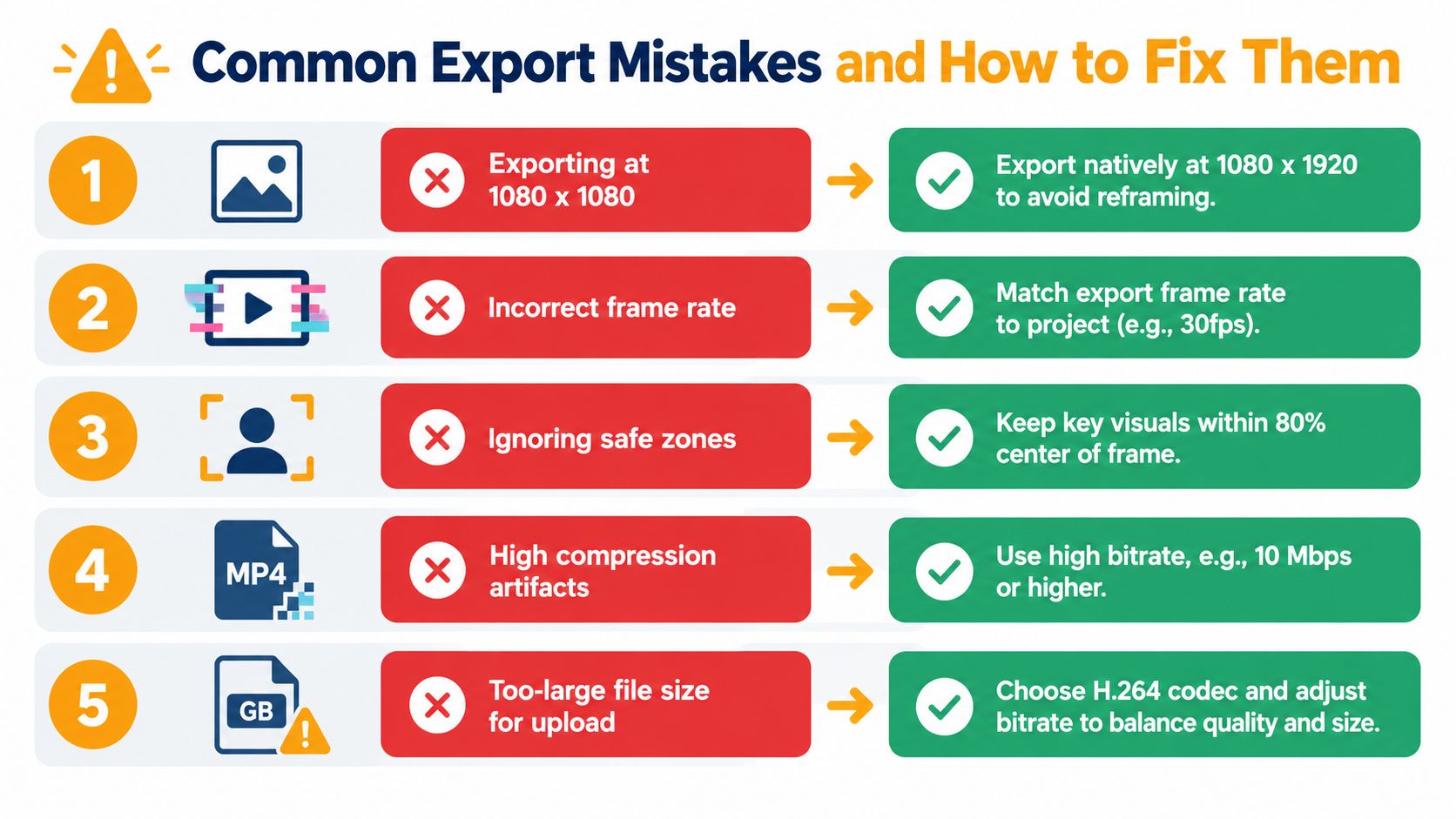
Most failed exports come from a mismatch between the project and the destination, not from complicated production problems.
- Square project: Exporting at 1080 × 1080 forces a platform or editor to decide how the image should fill a portrait player. Build the primary composition natively at 1080 × 1920.
- Ignored safe zones: Captions, usernames, and action controls can cover edge content. Keep critical information inside the protected center and check the live preview.
- Editing master uploaded directly: ProRes and MOV files are useful for post-production, but MP4 with H.264 is the practical upload format for broad compatibility and manageable file size.
- Mismatched frame rates: If the source is 24fps and the export is 30fps, motion can look uneven. Match the output to the project and source unless you have a deliberate conversion workflow.
- Wrong bitrate: Excessive bitrate creates unnecessarily large files, while too little data produces blocky detail. For 1080p social delivery, a target around 8 Mbps is a dependable starting point.
Before rendering: Confirm the canvas, frame rate, safe zones, codec, container, audio, and destination placement in one pre-flight pass.
Quick Reference Card
Use this as the short version when a deadline is close.
| Spec | TikTok | Reels | Shorts | Universal |
|---|---|---|---|---|
| Primary canvas | 1080 × 1920 | 1080 × 1920 | 1080 × 1920 | 9:16 |
| Feed alternative | None specified | 1080 × 1350, 4:5 | 1080 × 1080 scales cleanly | Create a separate crop |
| Container | MP4 | MP4 | MP4 | MP4 |
| Codec | H.264 | H.264 | H.264 or H.265 | H.264 for compatibility |
| Frame rate | 30fps baseline | 30fps | 30 to 60fps | Match the source |
| Bitrate starting point | 8 Mbps | 8 Mbps | 8 Mbps | 8 to 10 Mbps |
| Safe top margin | 15% to 20% | 15% to 20% | Around 15% | Protect the upper band |
| Safe bottom margin | 25% to 30% | 25% to 30% | Around 25% | Protect captions and controls |
For a reusable RemotionAI preset, set width 1080, height 1920, fps 30, codec H.264, and bitrate 12Mbps. Keep square pixels, respect bottom safe zones, and always preserve a 9:16 master even when the final placement needs 4:5.
RemotionAI lets you turn plain-language concepts into platform-ready videos, with vertical templates, animated captions, voiceovers, brand controls, editable Remotion code, and MP4 rendering. Visit RemotionAI to create a composition at the correct vertical video dimensions and ship a production-ready draft without rebuilding the export workflow from scratch.