How to Make a Good Edit That Keeps Viewers Watching | RemotionAI Blog
how to make a good edit · video editing tips · short form video · video pacing · RemotionAI
Learn how to make a good edit with a practical workflow for pacing, cuts, audio, captions, branding, platform formats, and final review.
You've got polished clips, a clean voiceover, and transitions that looked great in the preview. Yet the finished video feels strangely hard to follow. Before adding another effect, check whether viewers can understand the promise, follow the demonstration, and recognize what to do next.
Start With the Edit You Need
Learning how to make a good edit starts with deciding what viewers need, not choosing transitions. A product demonstration should help someone evaluate the product. An internal update should leave colleagues clear about what's changed.
Write down the purpose, audience, central message, publishing platform, and final action before touching the timeline. Those decisions tell you which footage deserves space and which attractive shots you can lose.
Every cut, caption, and motion graphic should clarify, intensify, or advance the message.
For projects combining stills and footage, Photo for Video's guide to editing family photos is a useful companion resource for preparing the photographic material.
Work from story planning to assembly, then sound, captions, formatting, and export. Don't polish a sequence you haven't yet made understandable.
Plan the Story Before the Timeline
Start with an audience problem and a desired response. For a product launch, that might mean showing a frustrated shopper how the product solves a task, then inviting them to inspect the details.
Build the script around value, proof, and action, rather than whatever footage happens to look impressive.
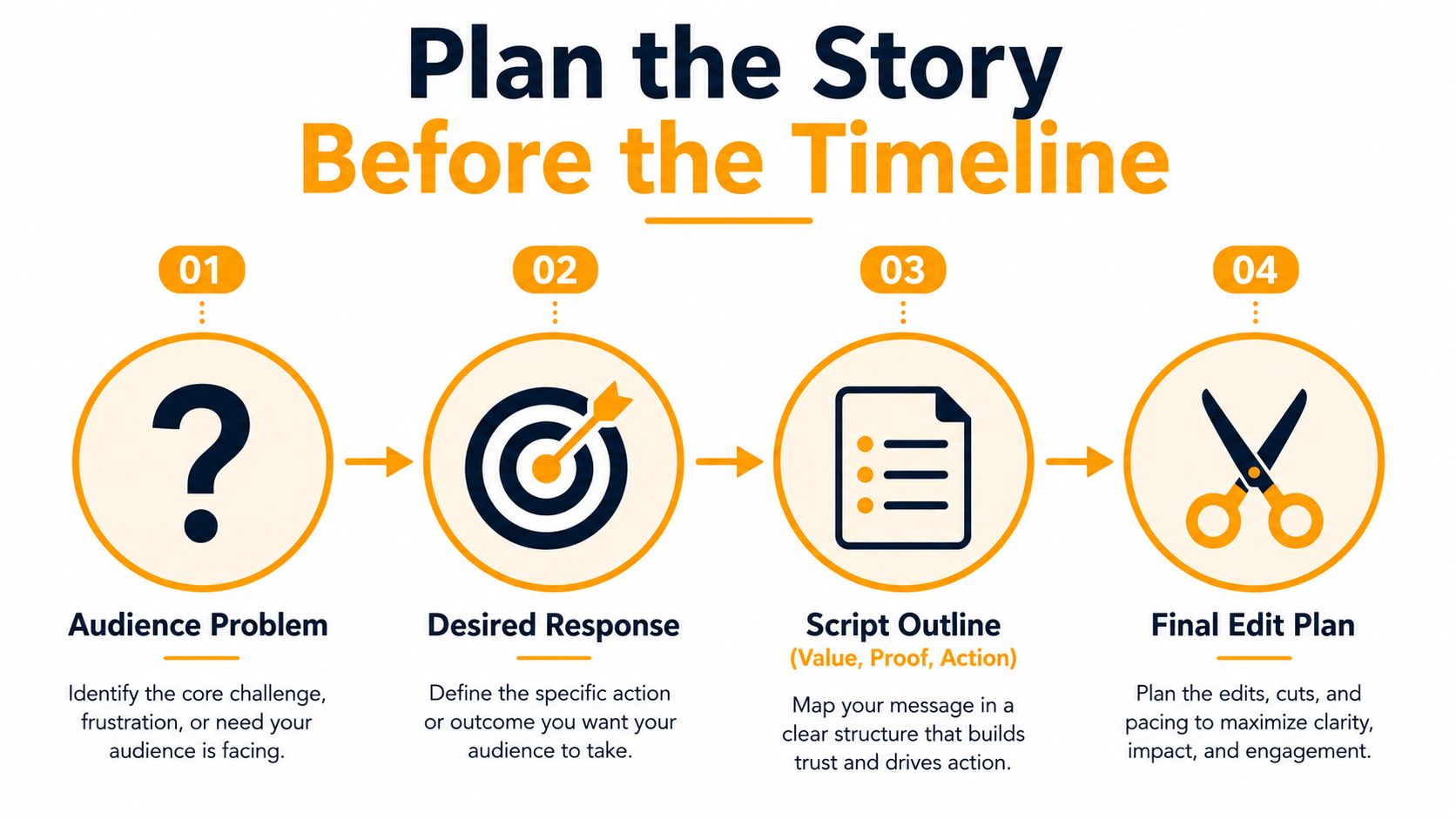
Use a video storyboard template to record each shot's purpose, expected duration, source footage or AI-generated scene, and required product detail. Label segments attention, understanding, proof, or action.
Protect the close-up that explains how a fastening mechanism works. Trim the repeated beauty shot, not the detail that resolves a buyer's doubt.
A 2018 EEG study involving 36 participants found that chaotic, fast audiovisual editing increased attentional scope but reduced conscious processing. Attention alone isn't comprehension.
Assembly test: If a shot has no unique job, leave it out of the first assembly.
Build Pacing Through Purposeful Cuts
Arrange footage in the order that makes the promise easiest to understand. Cut when the idea, evidence, speaker, or visual focus changes, not because the timeline has gone quiet.
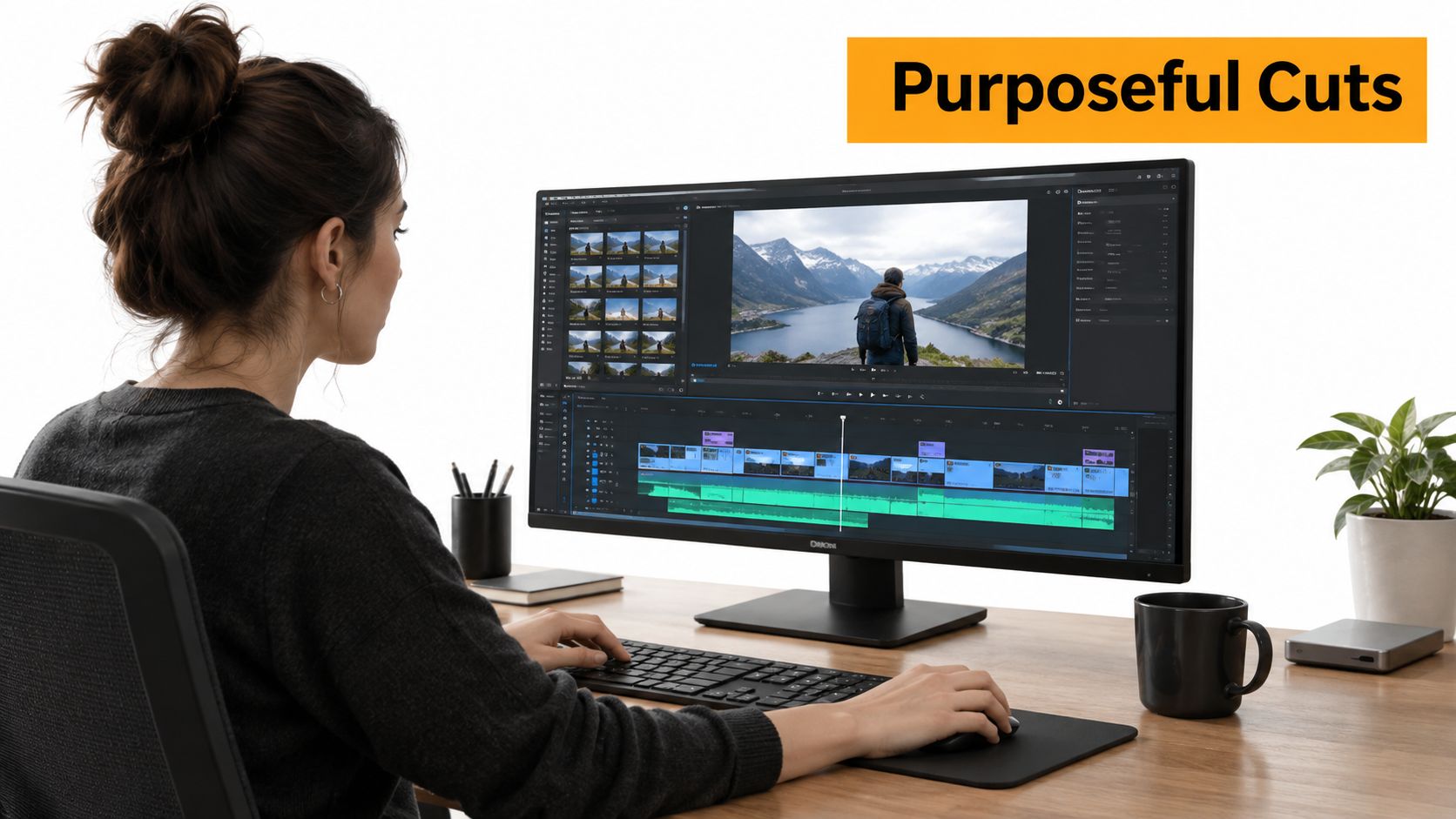
A founder jumping between every sentence can feel breathless. A tutorial cut that moves closer when the demonstrator adjusts a component gives viewers something useful. Keep a pause when viewers need it to inspect the result.
Preserve movement, gaze, screen direction, and audio across shot boundaries. A controlled film-perception study found that viewers reoriented in roughly 300 ms when motion continuity was disrupted, while coordinated motion and audio made cuts less consciously noticeable.
Make the transition earn its place
Cut during a gesture and match its direction in the incoming shot. Use a deliberate discontinuity when you want to signal a change, but make the new context clear.
For repurposing, PostSyncer's guidance on how to extract clips from long content complements a split-by-scene workflow. Review the assembly muted for visual jumps, then with sound for exposed dialogue edits.
Layer Audio Captions and Motion Text
Clean dialogue before adding music. Remove distracting noise where possible, smooth abrupt audio boundaries, and time the voiceover against the demonstration. Then lower the music until speech remains intelligible on phone speakers.
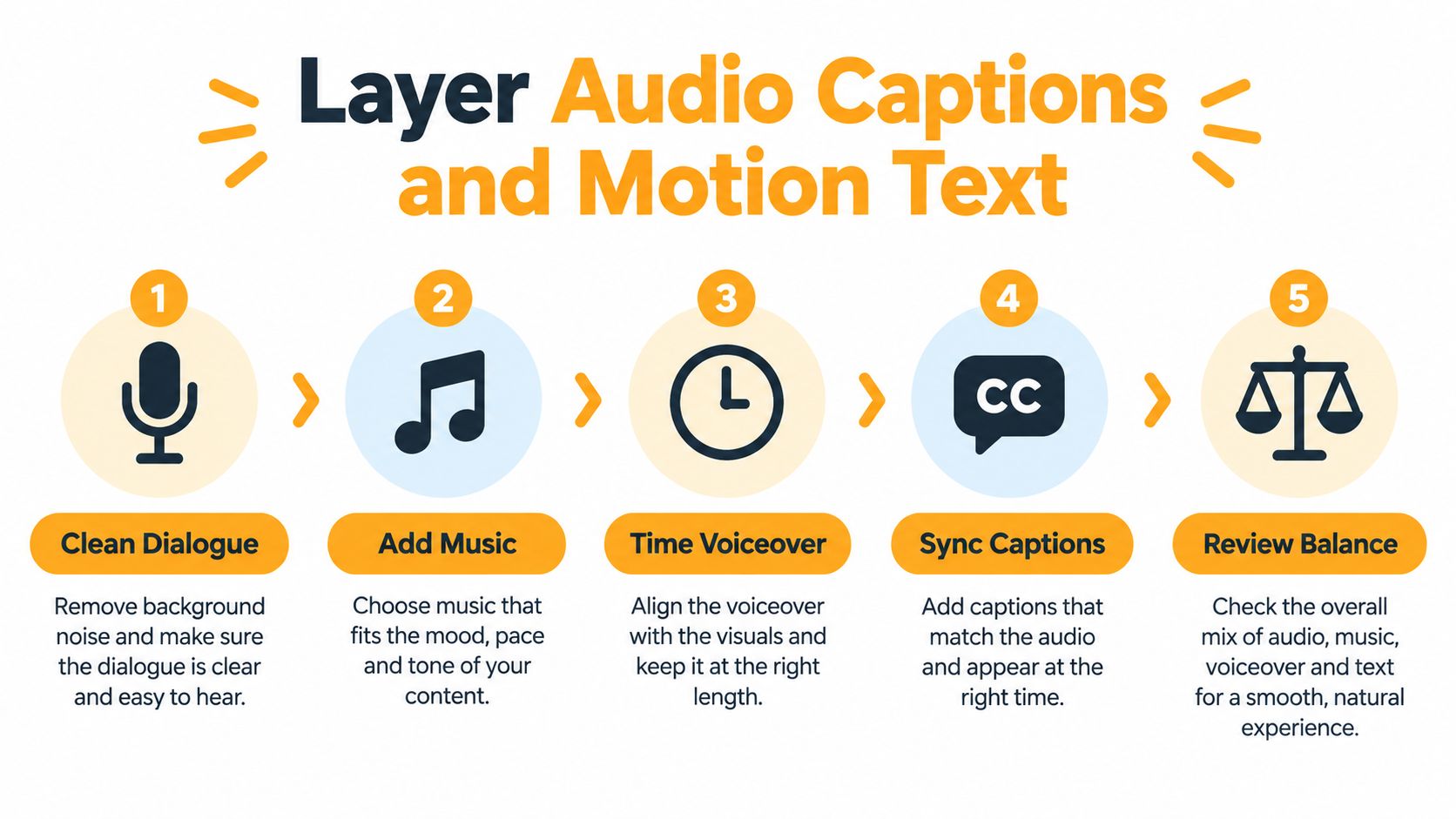
Treat captions as edited communication, not an unchecked transcript. Break lines into readable phrases, verify names and technical terms, synchronize timing, and keep text away from platform controls.
An A/B comparison of captioned Facebook videos reported 16% higher average reach and 17% more reactions; calls to action received 26% fewer clicks without captions. These findings support testing captions, not assuming identical gains everywhere.
Revise with a focused prompt
Alongside a manual timeline workflow, RemotionAI offers conversational revisions, presets, previews, and downloadable source .tsx. Specify the voice tone, caption behavior, timing, and visual emphasis, then apply a suitable template.
A useful prompt is: “Keep the narration calm, use phrase-level captions, and hold the product label until the demonstration ends.” Preview before requesting another change. Download the source when precise layout or timing adjustments need deeper customization.
Use motion text for labels, steps, or proof. If it competes with the demonstration, make it static.
Match Branding and Platform Formats
Choose the destination canvas before assembling the finished composition. Cropping a completed horizontal commercial can leave a vertical version with missing hands, clipped packaging, or captions covering the action.
Choose the Master Format Before Editing
| Publishing context | Starting canvas | Check before export |
|---|---|---|
| TikTok, Reels, Shorts | Vertical composition | Faces, demonstrations, and text clear of controls |
| YouTube and conventional campaigns | Horizontal composition | Product detail and graphics remain readable |
For Reels, Adobe recommends a vertical 9:16 canvas at 1080 × 1920 pixels, with 1080p and 30 frames per second. Preview on a phone rather than trusting desktop readability.
YouTube categorizes square or vertical uploads of up to three minutes as Shorts when uploaded on or after October 15, 2024. That ceiling isn't a reason to pad the story.
Apply approved colors, logos, and a recognizable preset consistently. Keep sufficient contrast for mobile playback, and don't enlarge branding until it crowds the demonstration.
Export and Review the Final Cut
Verify duration, aspect ratio, resolution, file size, container, audio clarity, caption placement, logo visibility, and safe framing. Instagram's listed Reels specifications include MP4 or MOV, H.264 or HEVC, progressive scanning, 23 to 60 FPS, and a recommended 9:16 ratio.
Use the video export guide when preparing the deliverable. In the AI-assisted workflow, use fast previews to change a single variable, inspect the result, and render again; edit the source .tsx when a narrow code adjustment is more precise than another broad prompt.
- Story and pacing: Confirm the purpose, meaningful cuts, and continuity.
- Sound and text: Check synchronization, intelligibility, and caption readability.
- Delivery: Verify branding, platform compliance, and the uploaded preview.
Finish with a complete mobile watch-through, muted and with audio. Where practical, ask someone unfamiliar with the project to flag confusing moments before publication.
RemotionAI offers prompt-based video creation, style presets, synchronized audio, captions, and editable source code. Bring it a clear story plan, preview the first assembly, and request a focused pacing or caption change before rendering your final cut.